
Browser Extension Installation Guide
This guide will help you install unpacked browser extensions. Please follow the steps for your browser.
← Back to Download💡 Before Installation:
This guide will help you install unpacked browser extensions. Please follow the steps for your browser.

Chrome Installation Steps
Follow the steps below to complete installation
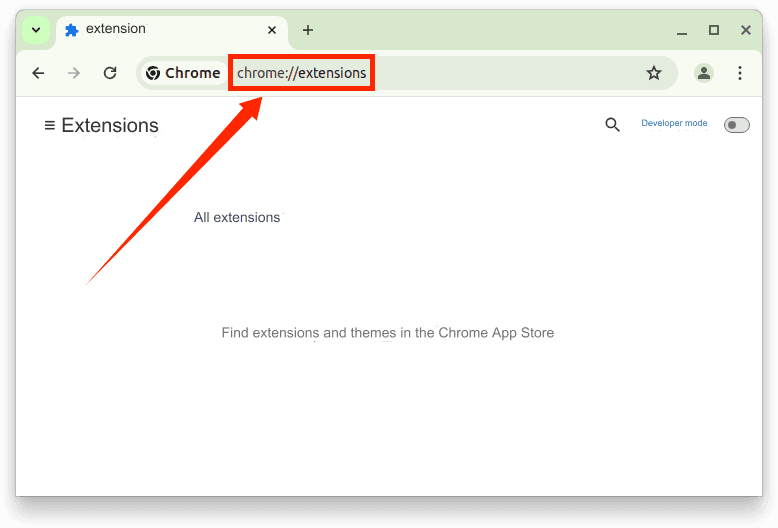
Open Extensions Page
Type chrome://extensions/ in Chrome's address bar and press Enter, or go to Menu -> More Tools -> Extensions
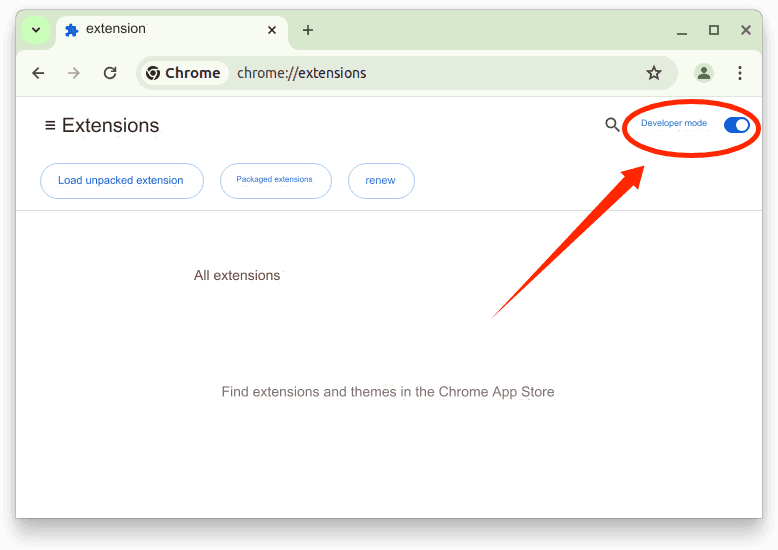
Enable Developer Mode
Toggle the 'Developer mode' switch in the top right corner of the extensions page
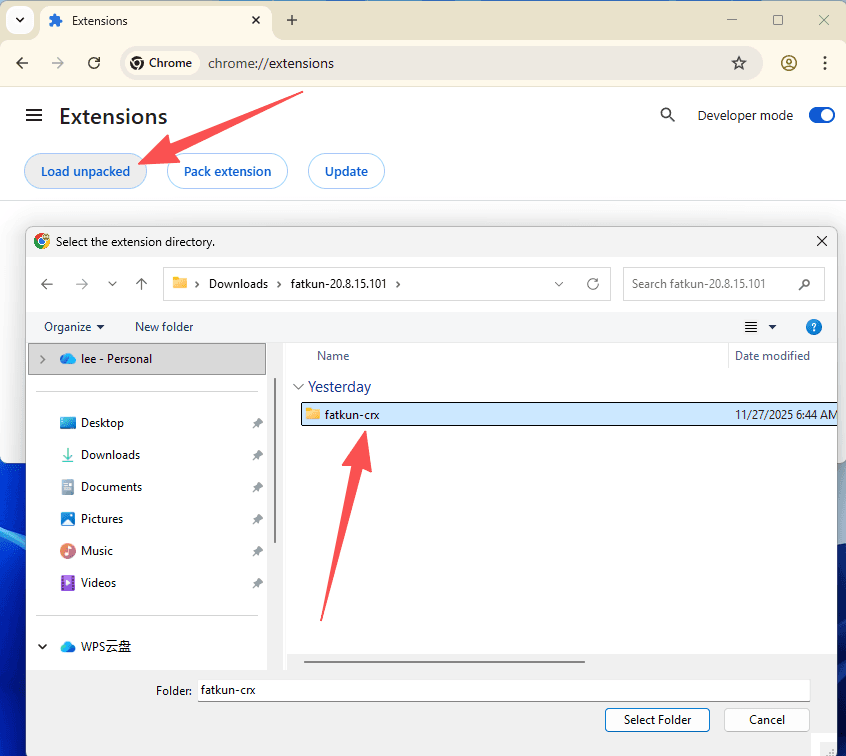
Load Unpacked Extension
Click 'Load unpacked' button and select the folder containing your extension files
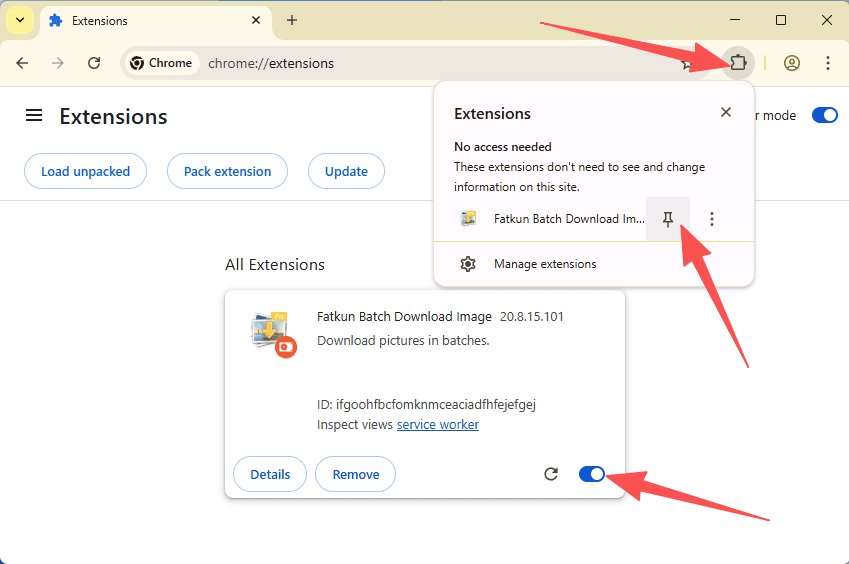
Installation Complete
The extension will appear in the list. Make sure it's enabled. You'll see the extension icon in the browser toolbar

Edge Installation Steps
Follow the steps below to complete installation
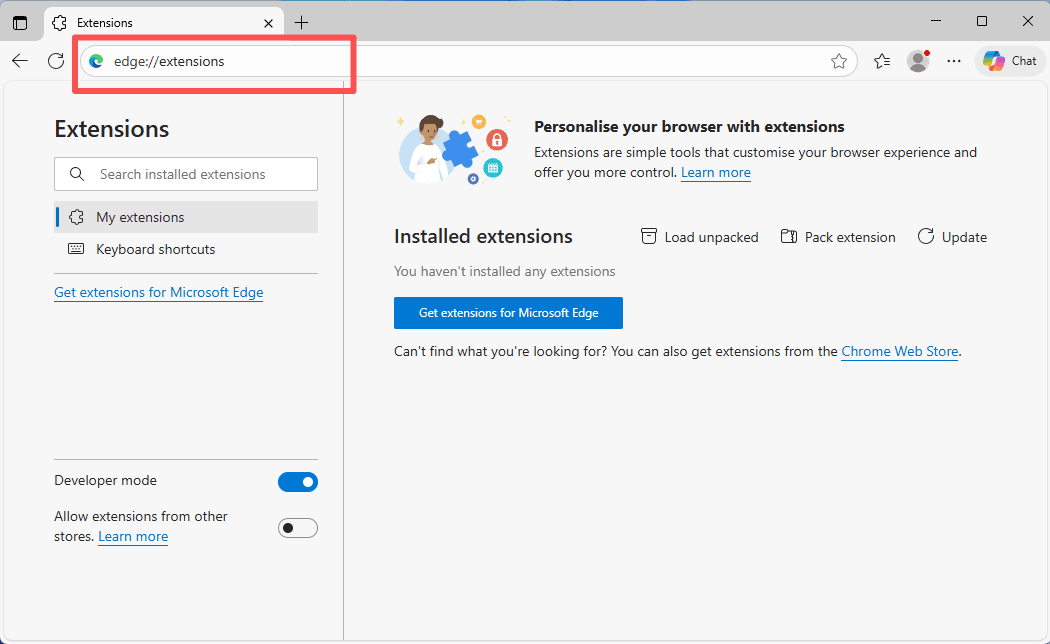
Open Extensions Page
Type edge://extensions/ in Edge's address bar and press Enter
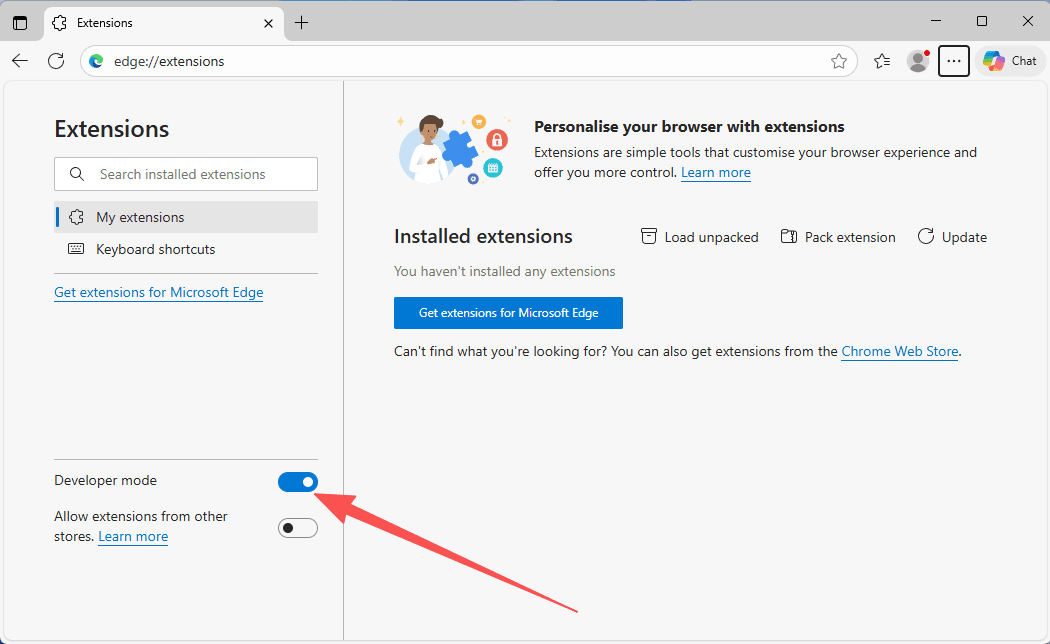
Enable Developer Mode
Toggle the 'Developer mode' switch in the bottom left corner
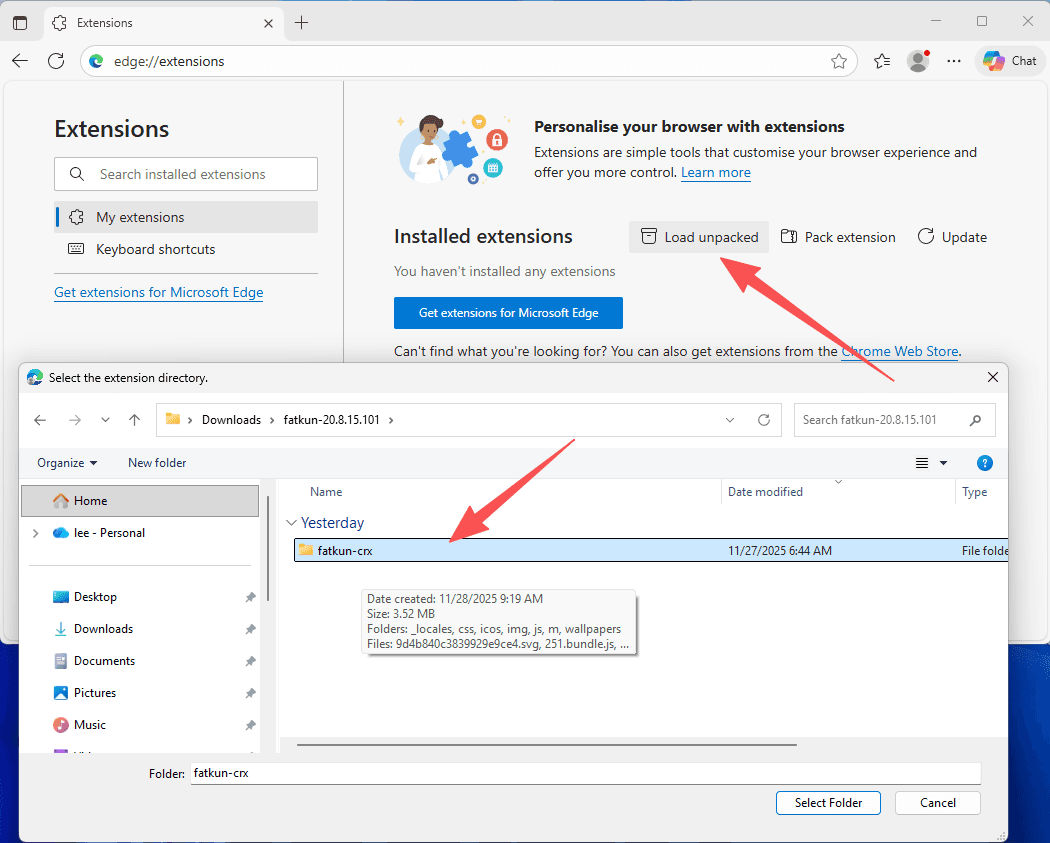
Load Unpacked Extension
Click 'Load unpacked' button and select the extension folder to complete installation
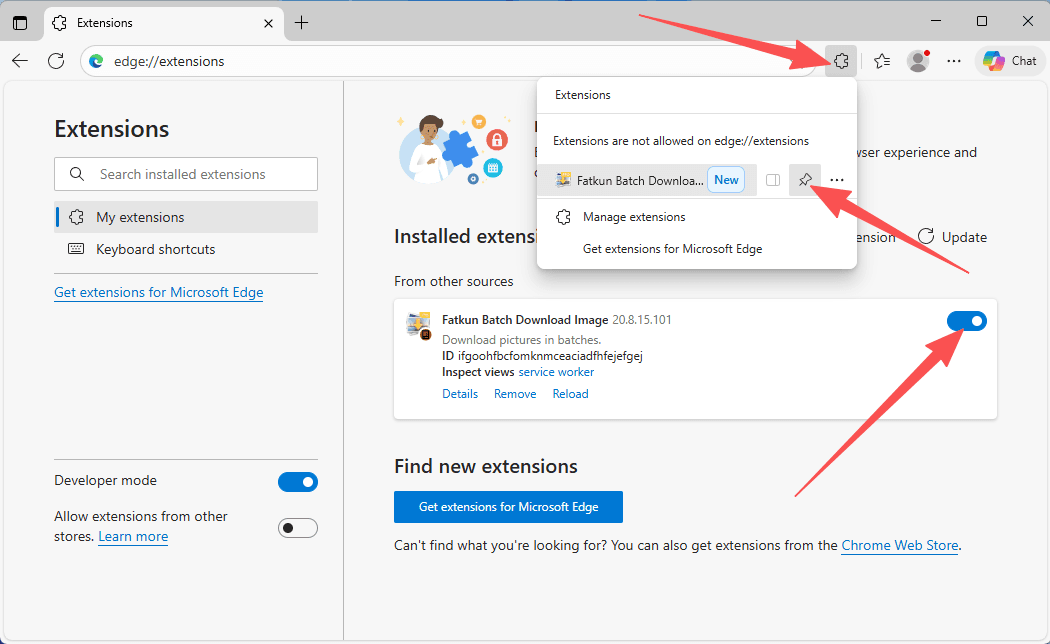
Installation Complete
The extension will appear in the list. Make sure it's enabled. You'll see the extension icon in the browser toolbar
⚠️ Important:
Note: Extensions installed in developer mode may show warnings after browser restart. This is normal, and you can choose to keep the extension.